
How to Turn On Two-Factor Authentication
Two-factor authentication adds a rotating six-digit code from an authenticator app on top of your password. With it on, a stolen password is not enough to reach your account.
Two ways to use Cashaa — the same screens either way. Open the Android app from cashaa.com/app, or sign in with any browser at platform.cashaa.com. The steps below are identical on both. (The iPhone app is with Apple for review — until it lands, iPhone users can use the browser.)
- 1
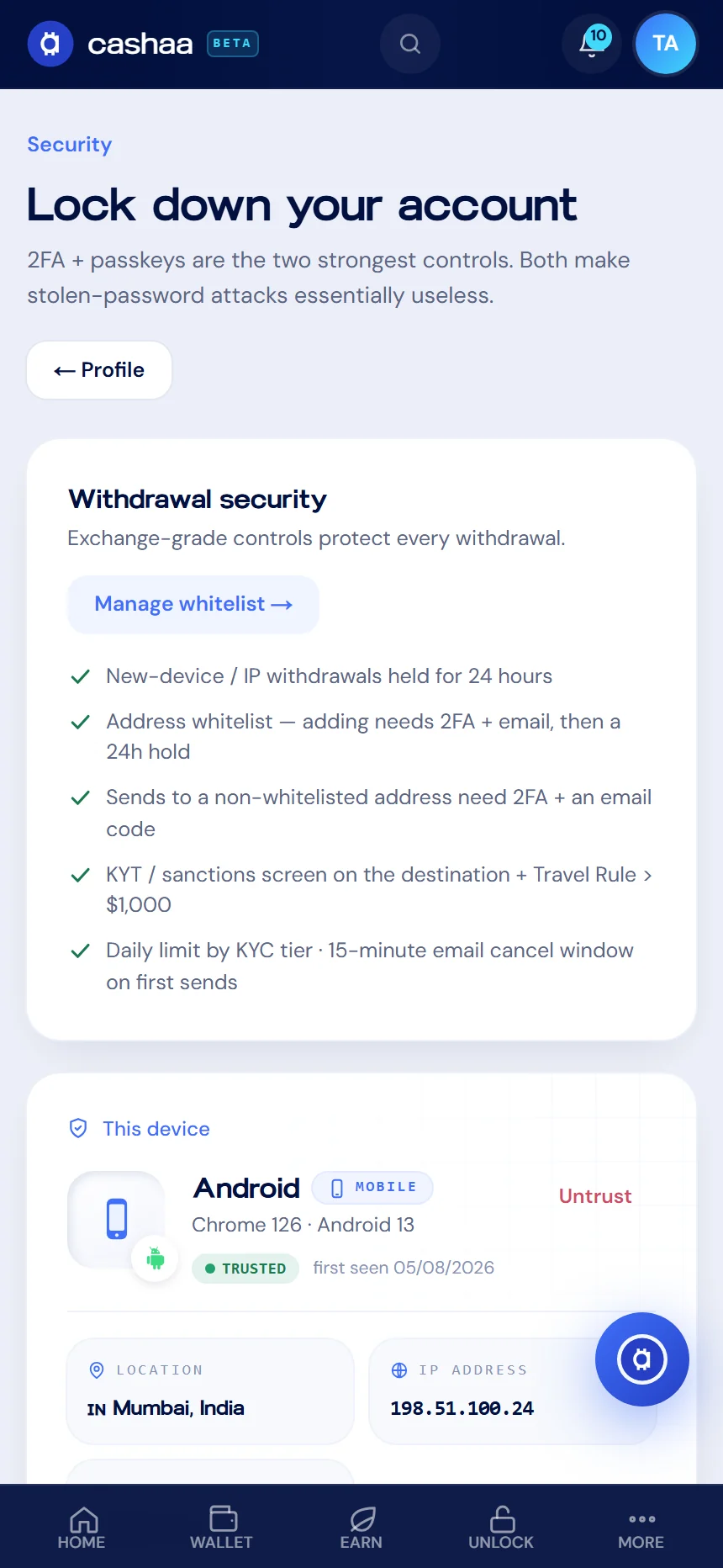
Step 1: Open Security
Go to Settings → Security. Everything protecting your account lives on this screen.
- 2
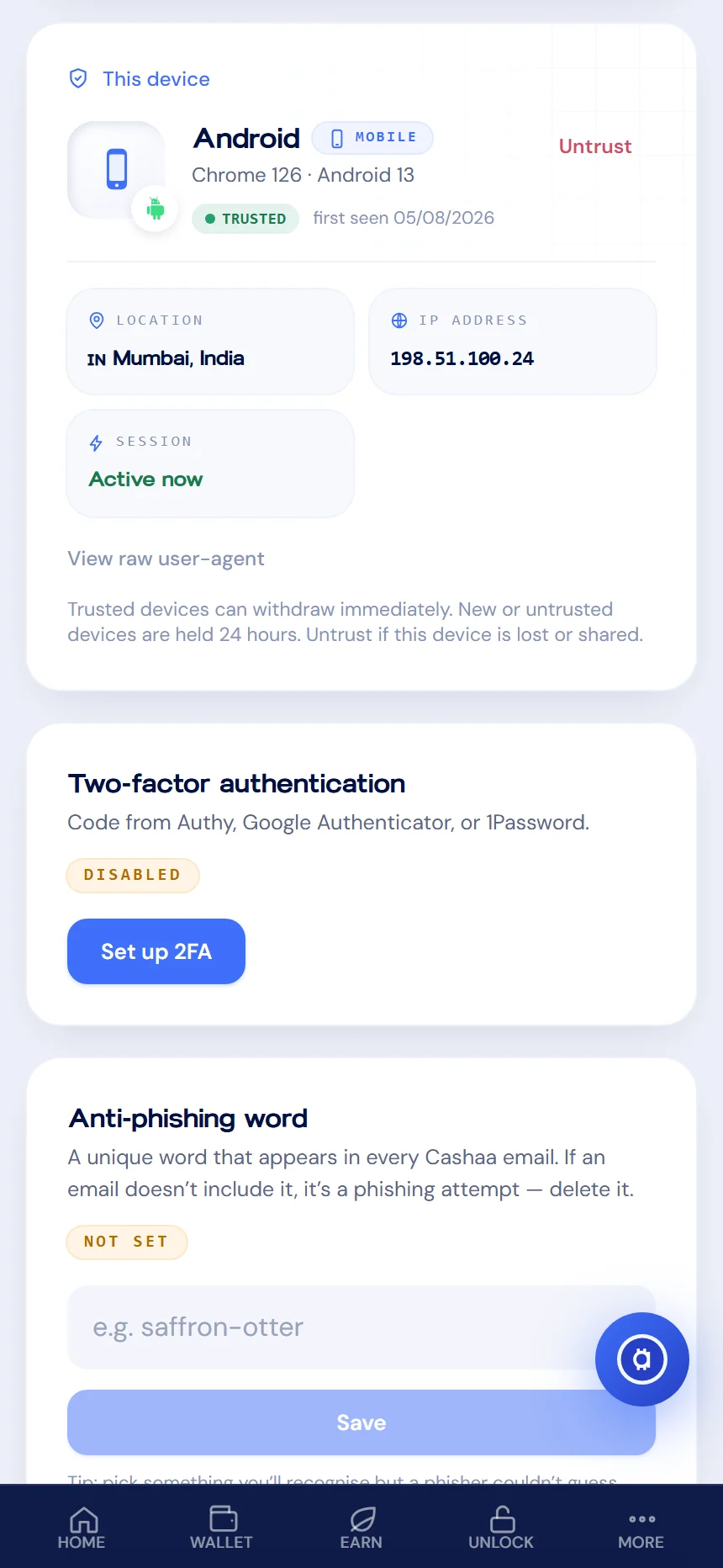
Step 2: Start the 2FA setup
Find Two-factor authentication and choose Set up 2FA.
- 3
Step 3: Scan the QR code
Open your authenticator app — Google Authenticator, Authy and 1Password all work — and scan the code shown. If you cannot scan, enter the setup key by hand.
- 4
Step 4: Enter the six-digit code
Type the code your authenticator shows to confirm the pairing worked. We also email you a one-time code to confirm the change.
- 5
Step 5: Save your recovery details
Store the setup key somewhere safe and offline. If you lose your phone, it is how you get back in.
- 6
Consider a passkey too
A passkey signs you in with your fingerprint or Face ID and cannot be phished, because the key never leaves your device. You can have both.
Was this helpful?
Quick feedback helps us improve.