
How to Change the Email Address on Your Cashaa Account
Your email address is how you sign in and how we send security codes, so changing it is deliberately a careful process — confirmed from both the old address and the new one.
Two ways to use Cashaa — the same screens either way. Open the Android app from cashaa.com/app, or sign in with any browser at platform.cashaa.com. The steps below are identical on both. (The iPhone app is with Apple for review — until it lands, iPhone users can use the browser.)
- 1
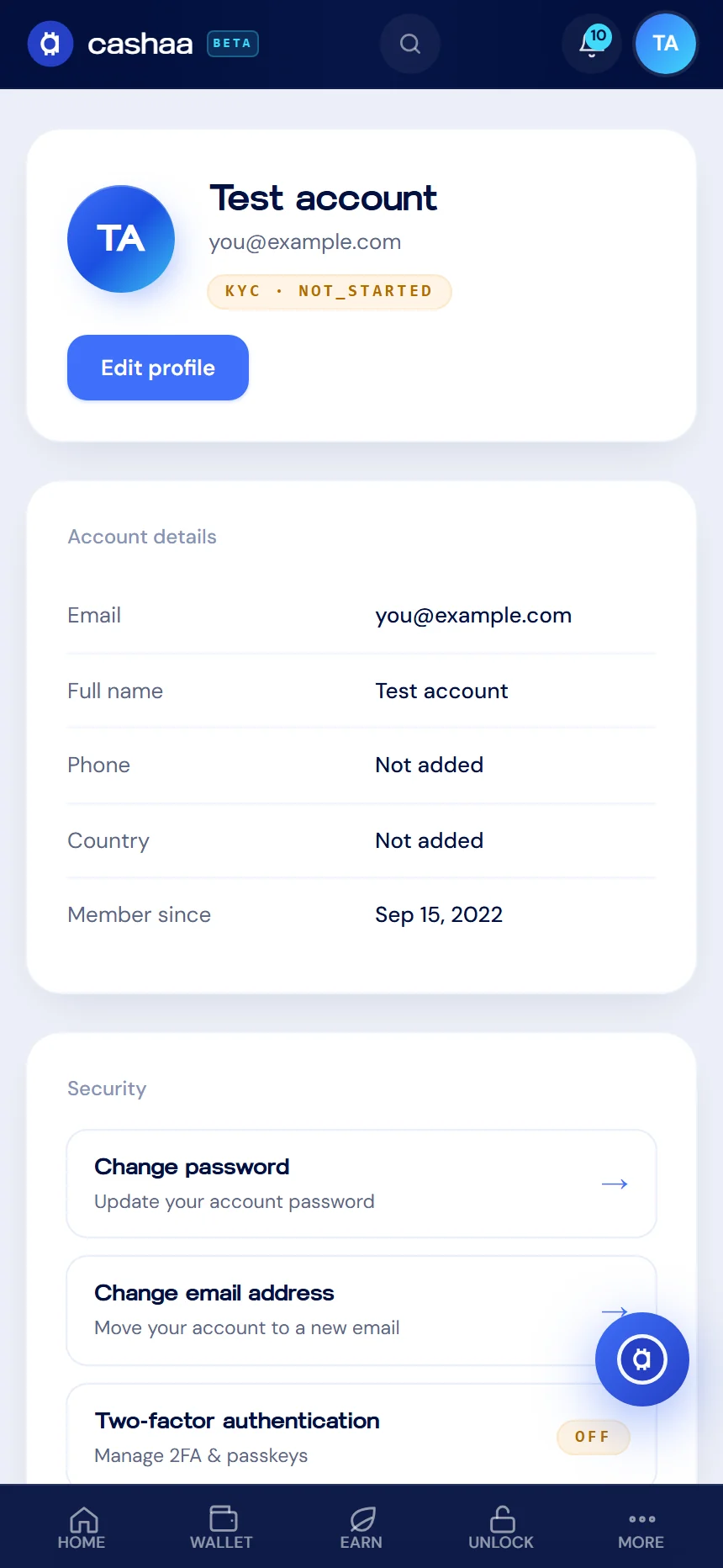
Step 1: Open your profile
Go to Settings → Profile and choose Change email address.
- 2
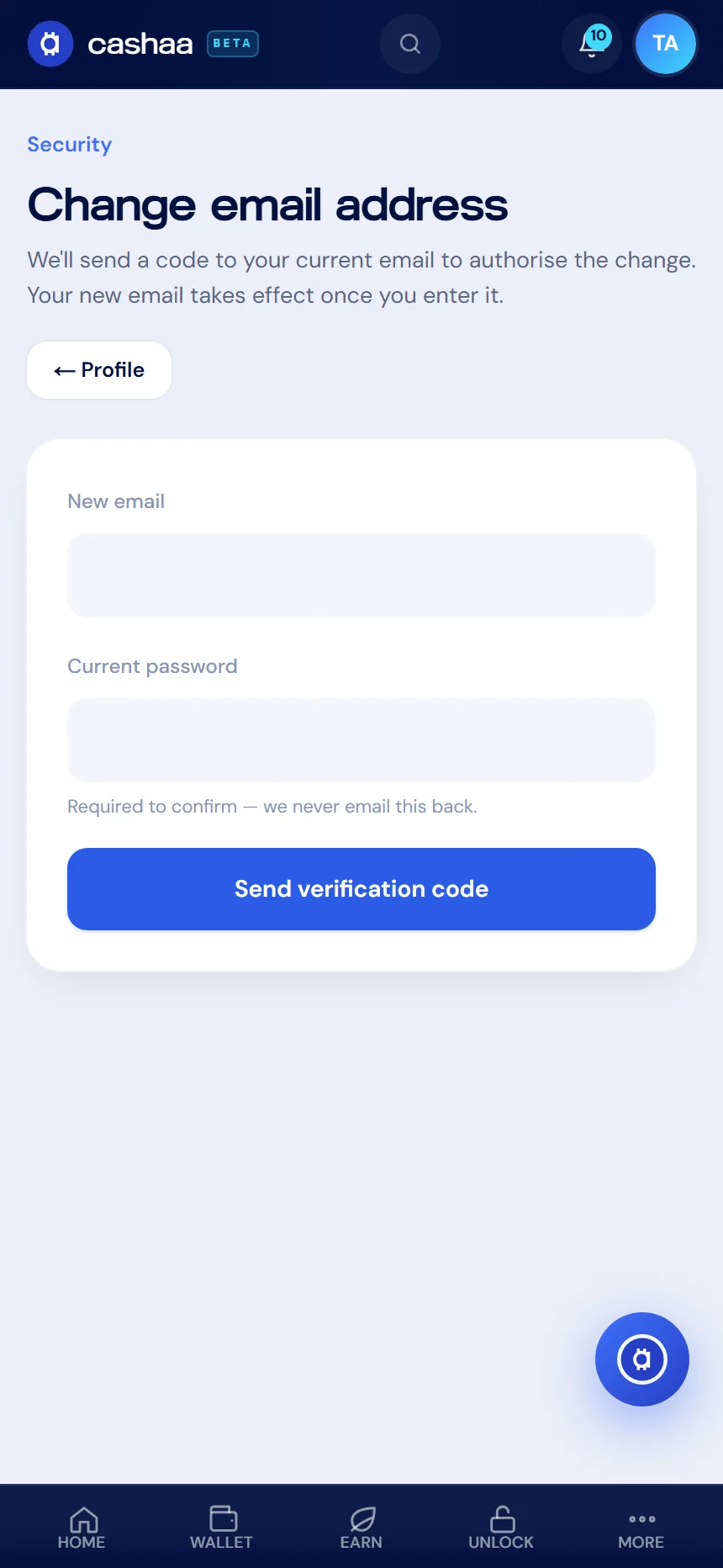
Step 2: Enter the new address
Type the address you want to move to, and your current password to authorise the change.
- 3
Step 3: Confirm from your current inbox
We send a code to your current address. Enter it to prove the account is yours. If it has not arrived, check your spam folder.
- 4
Step 4: Confirm the new address
We then email the new address to verify you can reach it. Once confirmed, the change takes effect.
- 5
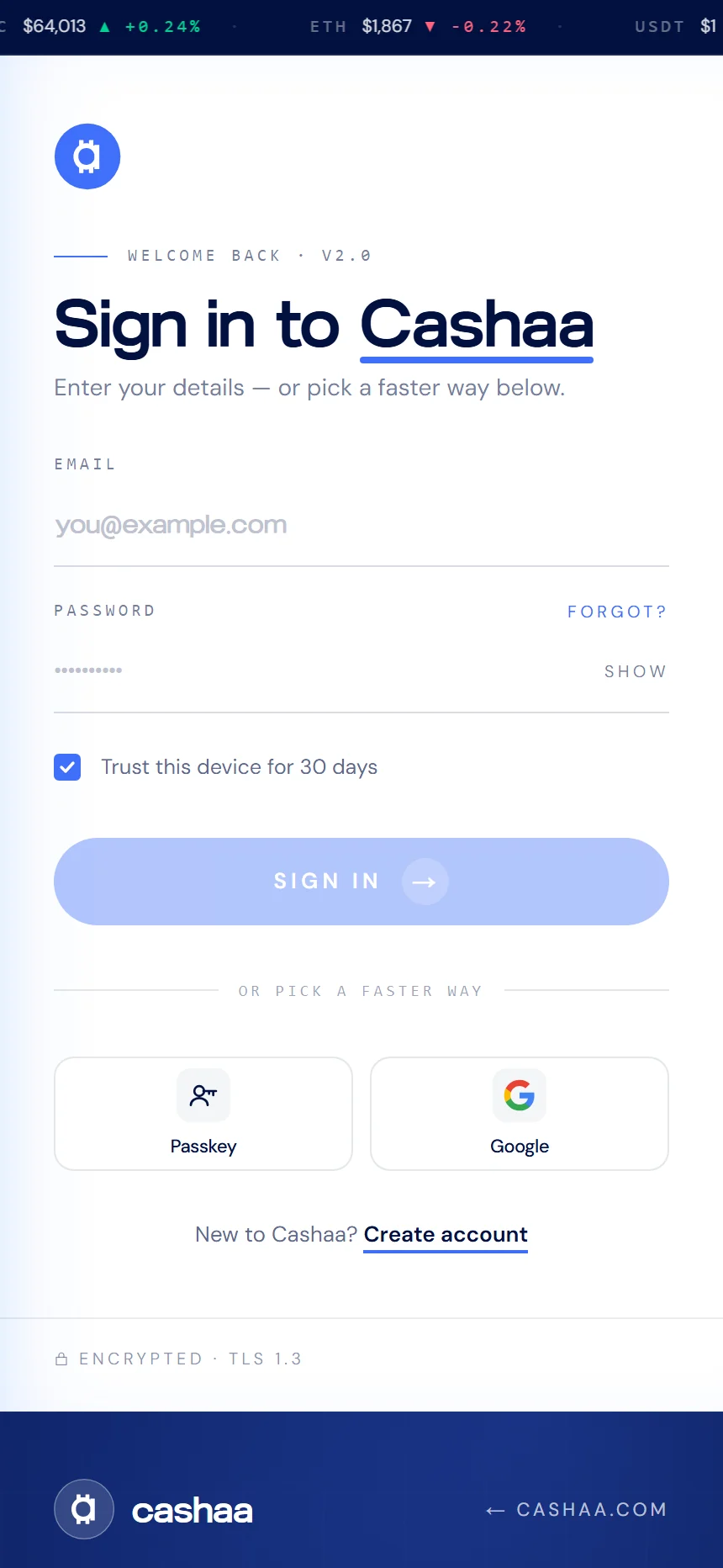
Step 5: Sign in again
You are signed out of all devices and sign in with the new address. That is intentional — it makes sure nobody keeps a session on the old one.
Was this helpful?
Quick feedback helps us improve.