
How to Deposit Cryptocurrency on Cashaa
Depositing means sending crypto from another wallet or exchange to your Cashaa address. Each asset has its own address per network, generated for your account.
Two ways to use Cashaa — the same screens either way. Open the Android app from cashaa.com/app, or sign in with any browser at platform.cashaa.com. The steps below are identical on both. (The iPhone app is with Apple for review — until it lands, iPhone users can use the browser.)
- 1
Step 1: Open Deposit
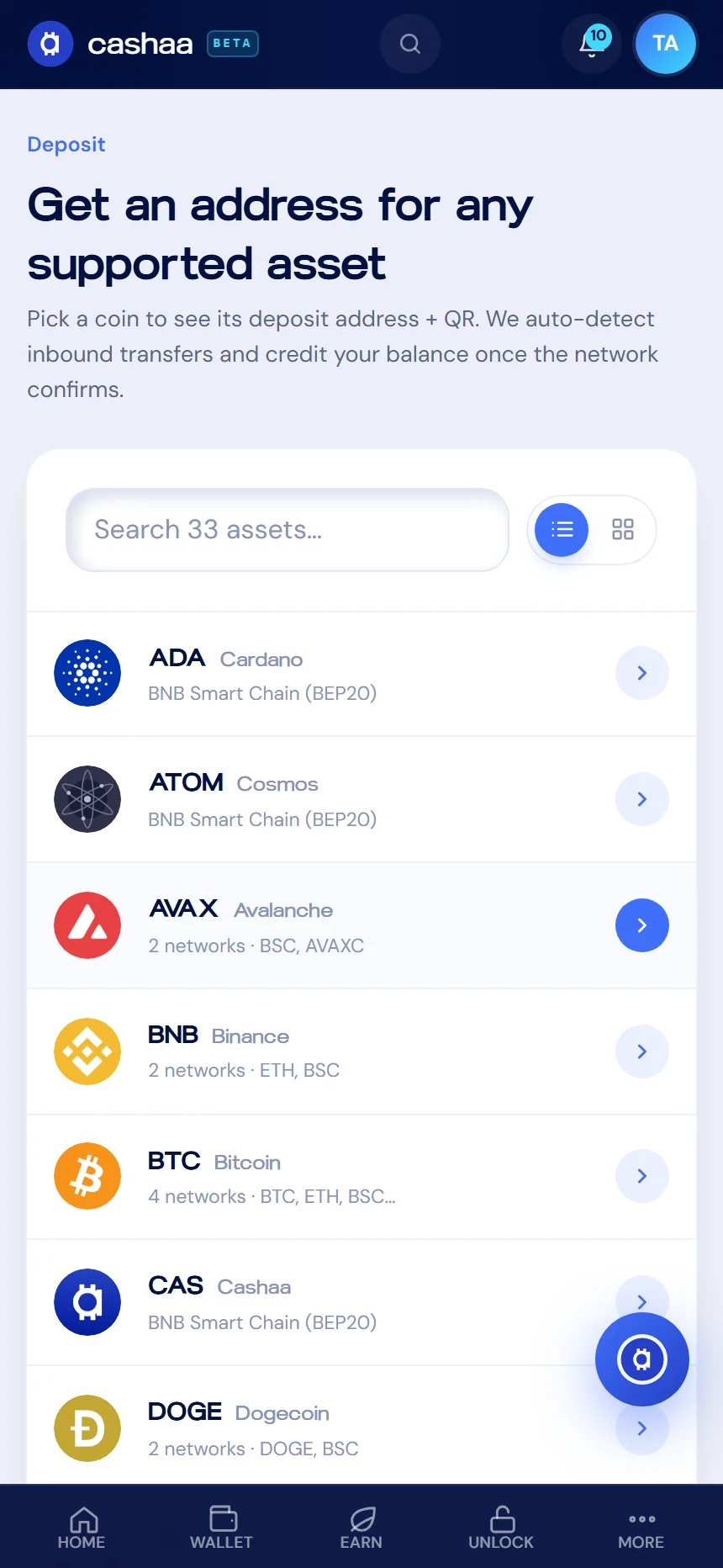
From the dashboard, choose Deposit. You will see every supported asset — search if you know what you are looking for.
- 2
Step 2: Pick the asset
Select the coin or token you are sending. The screen that opens is specific to that asset.
- 3
Step 3: Choose the network
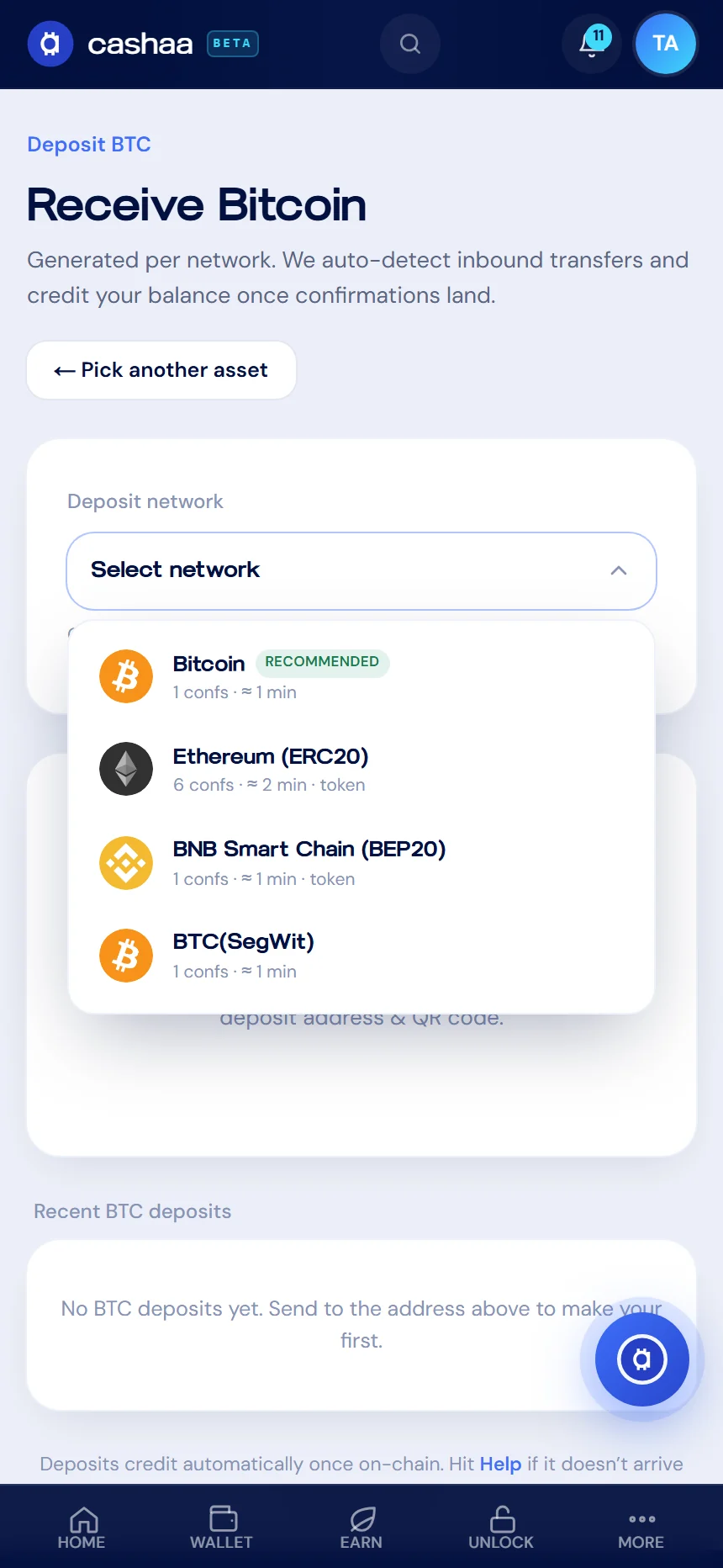
Pick the network the sender will use — for example BEP-20 or ERC-20 for USDT. The address and QR code appear once you choose.
This step matters. Coins sent on a network other than the one you selected cannot be recovered.
- 4
Step 4: Copy the address
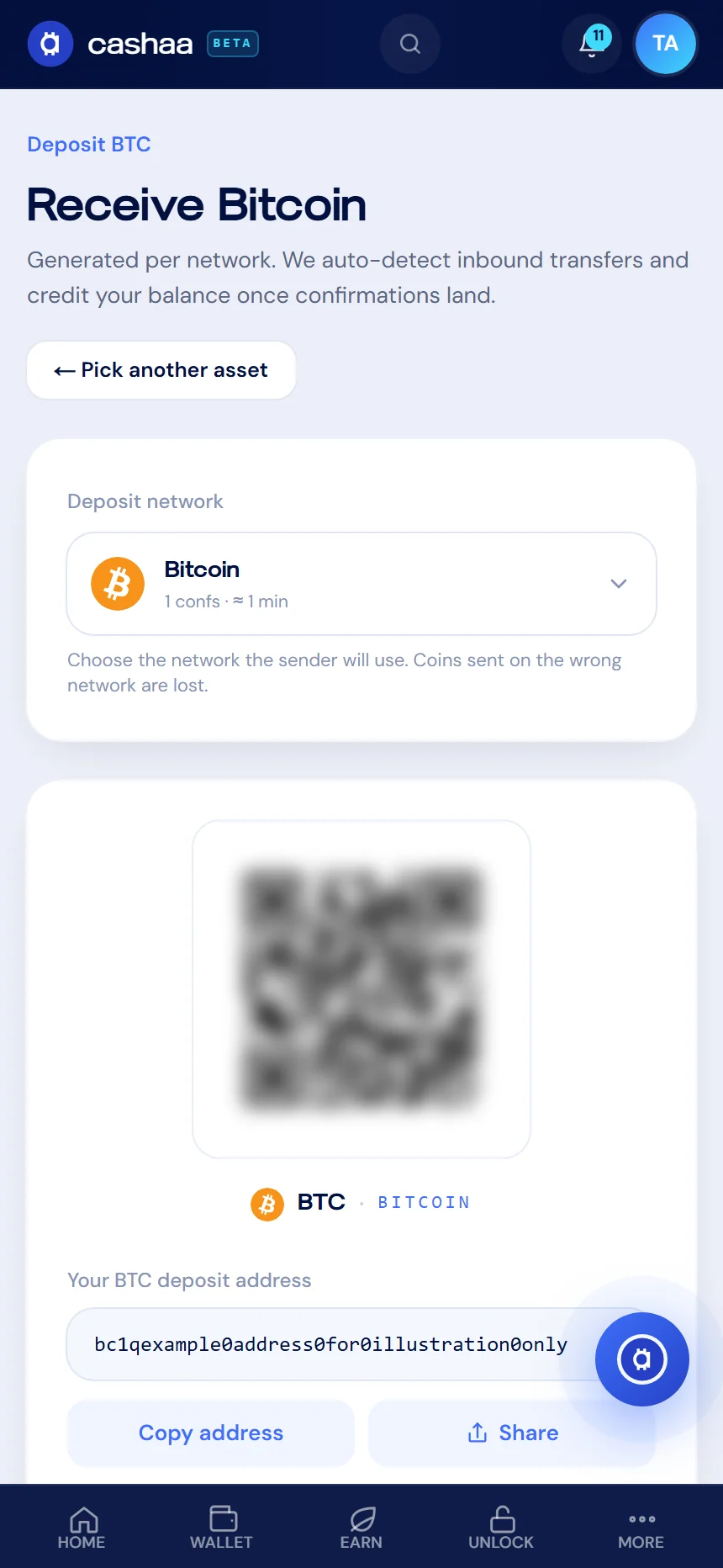
Copy the address, or scan the QR code from the sending wallet. Never type an address by hand.
Some assets also need a memo or tag. If one is shown, it must be included or the deposit will not be credited.
- 5
Step 5: Send, then wait for confirmations
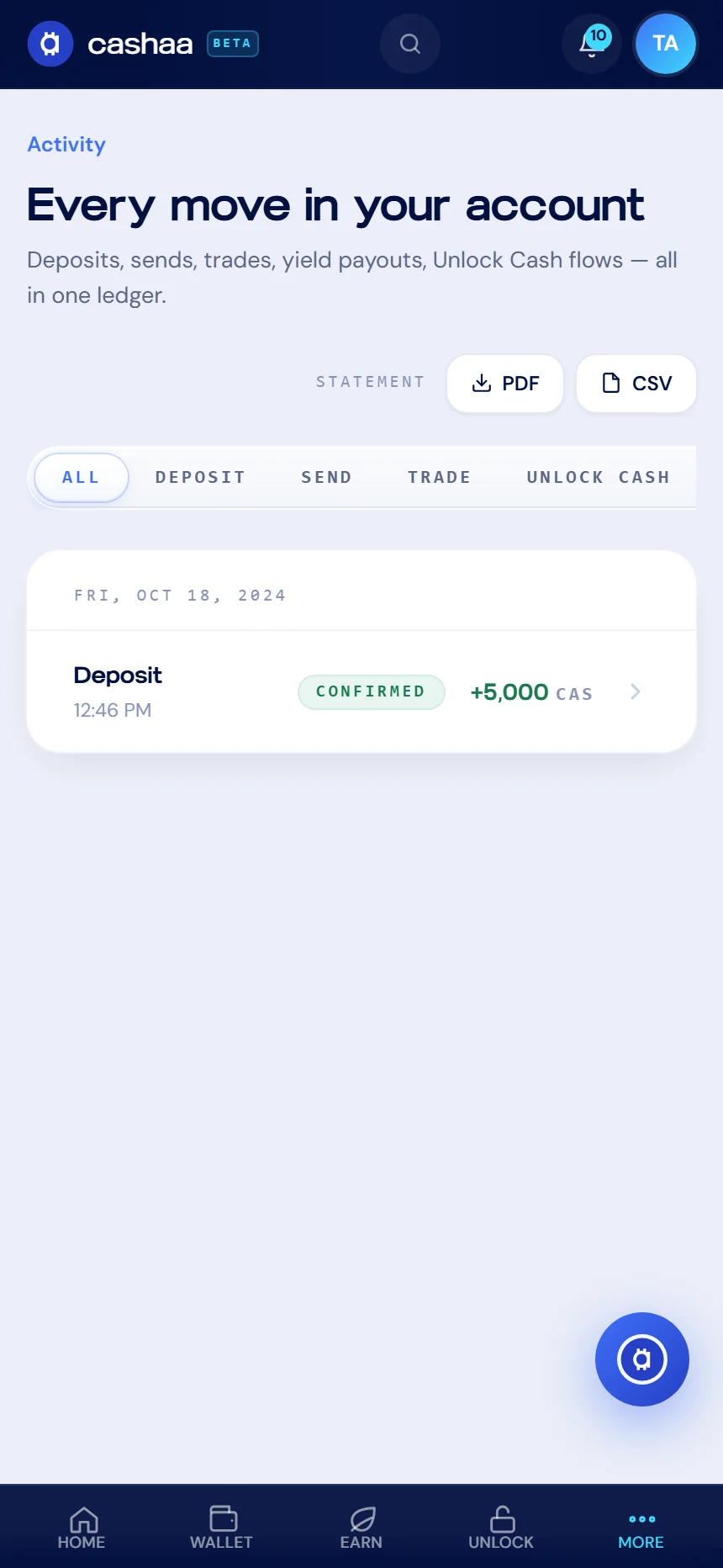
Make the transfer from your other wallet or exchange. We detect it automatically and credit your balance once the network confirms — usually a few minutes, though it varies by blockchain and how busy it is.
Was this helpful?
Quick feedback helps us improve.